VPN for Remote Work
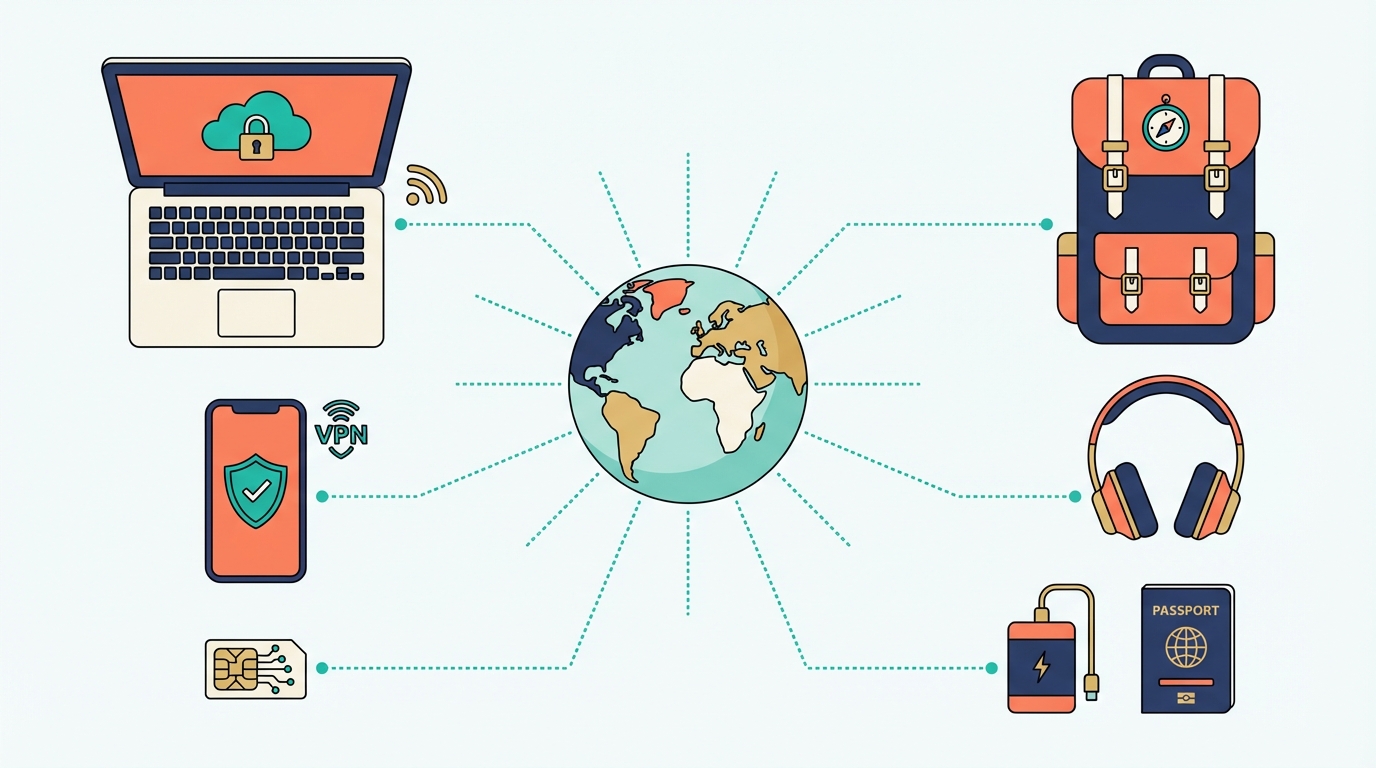
Secure your connection from coffee shops, co-working spaces, and hotel lobbies — without slowing down your workflow.
The hidden dangers of remote work Wi-Fi
Coffee shops and co-working spaces feel productive — but they share the same unencrypted network with dozens of strangers. Every packet of data you send can be intercepted by anyone on the same network. Man-in-the-middle attacks require nothing more than a laptop and a free tool downloaded from the internet.
Unencrypted HTTP traffic — still common on older internal tools, login portals, and APIs — is sent in plain text. Without a VPN, a skilled attacker on the same Wi-Fi can read your passwords, session tokens, and emails as they travel across the network.
Using public Wi-Fi without a VPN is like having a private conversation in a crowded café — you assume no one is listening, but anyone who wants to can lean in and hear everything.

Split tunneling — route only what matters through the VPN
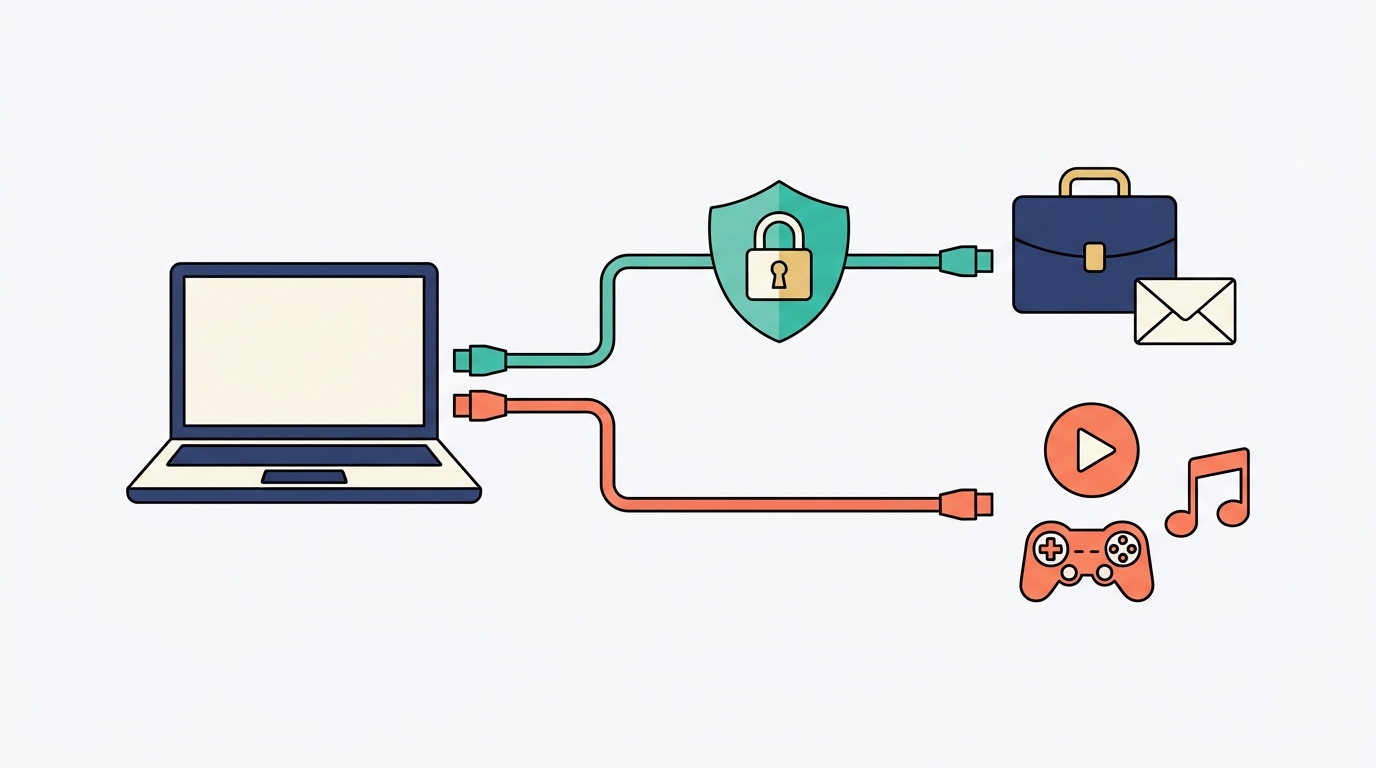
Split tunneling lets you decide which apps or traffic go through the VPN and which connect directly to the internet via your local ISP. Your work email, Slack, and internal tools get the full VPN treatment. Netflix, Spotify, and casual browsing bypass the VPN entirely — giving you full speed for non-sensitive traffic.
This is a game-changer for remote workers: you get the security you need for work without sacrificing streaming quality or download speeds for personal use.
| Traffic type | Route | Why |
|---|---|---|
| Work email (Gmail, Outlook) | ✓ VPN | Sensitive data, login credentials |
| Zoom / video calls | ✓ VPN | Meeting content, screen shares |
| Slack / Teams | ✓ VPN | Internal communications |
| Netflix / streaming | ✗ Local ISP | Speed matters, not sensitive |
| Gaming | ✗ Local ISP | Latency-sensitive, no private data |
| Software downloads | ✗ Local ISP | Public files, speed preferred |
Always-on VPN: set it and forget it
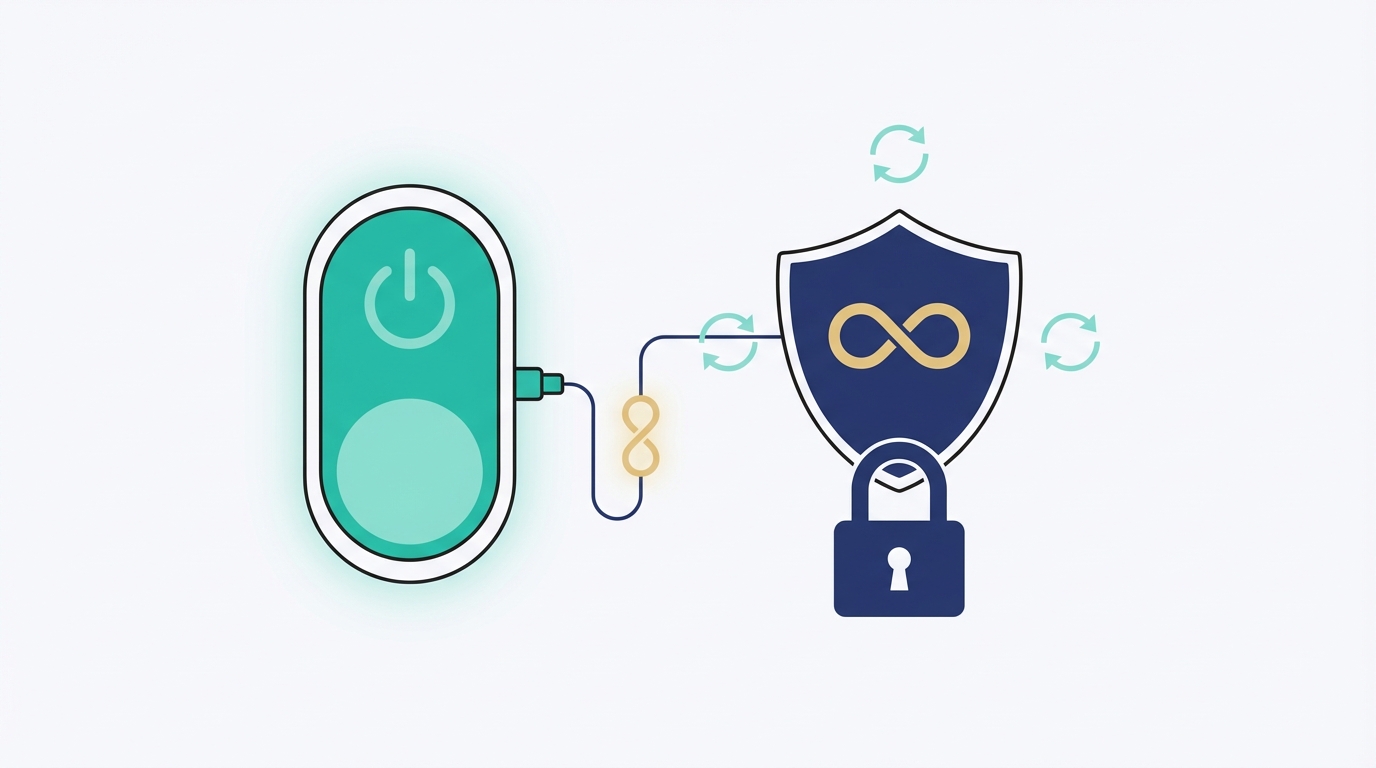
Always-on VPN means your device will never connect to the internet without the VPN active. If the VPN connection drops — due to a network switch, sleep/wake cycle, or server hiccup — your internet cuts entirely rather than exposing your traffic unprotected.
To configure it: open your VPN app's settings, look for "Always-on VPN" or "Auto-connect" and enable it. On Android, you can also enable this at the OS level via Settings > Network > VPN.
Configure your VPN kill switch — if the VPN drops, your internet cuts entirely, preventing accidental data exposure. Without it, a brief disconnection could silently expose your work traffic on an unsecured network.