uPhone
  • Destinations
  • Find a Plan
  • Global
  • Subscriptions
  • How It Works
  • eSIM Guide
  • Travel Guides
Log in
  • Currency
  • 🇺🇸 USDUS Dollar
  • 🇪🇺 EUREuro
  • 🇬🇧 GBPBritish Pound
  • 🇦🇺 AUDAustralian Dollar
  • 🇨🇦 CADCanadian Dollar
  • 🇸🇬 SGDSingapore Dollar
  • 🇯🇵 JPYJapanese Yen
  • 🇦🇪 AEDUAE Dirham
  • 🇺🇸 USD – US Dollar
  • 🇪🇺 EUR – Euro
  • 🇬🇧 GBP – British Pound
  • 🇦🇺 AUD – Australian Dollar
  • 🇨🇦 CAD – Canadian Dollar
  • 🇸🇬 SGD – Singapore Dollar
  • 🇯🇵 JPY – Japanese Yen
  • 🇦🇪 AED – UAE Dirham
Log in
  1. Home
  2. How To Install Your eSIM

How To Install Your eSIM

Follow these steps to get connected in under 2 minutes. Make sure you have a Wi-Fi connection before starting.

Before you start: Your iPhone must be eSIM-compatible (iPhone XS or later) and carrier-unlocked. You'll need a Wi-Fi connection.

1
Connect to Wi-Fi
Make sure you're connected to Wi-Fi. You'll need internet to download the eSIM profile.
2
Open your email
Find the email from uPhone with your eSIM QR code. Open it on a different device or print the QR code — you cannot scan your own screen.
3
Open Settings
On your iPhone, go to Settings → Cellular (or Mobile Data in some regions).
4
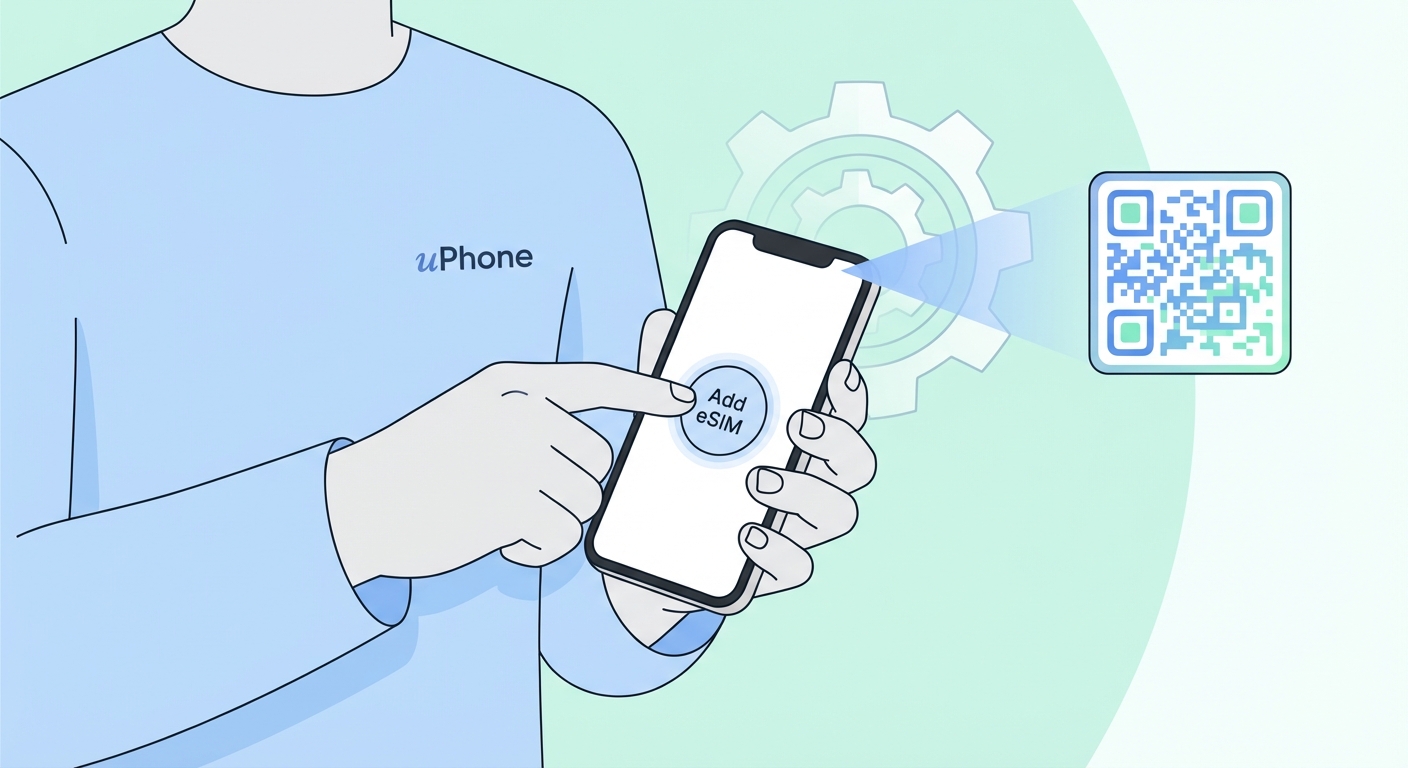
Add eSIM
Tap Add eSIM or Add Cellular Plan. Then tap Use QR Code.
5
Scan the QR code
Hold your iPhone camera over the QR code in your email. Your iPhone will detect and add the eSIM automatically.
6
Activate & label
Tap Continue and then Add Cellular Plan. Label it with your destination (e.g. "Japan trip"). Done!
iPhone tip

You can install the eSIM before you travel and turn it on when you arrive. Go to Settings → Cellular → your eSIM plan → toggle it on/off as needed.

Before you start: eSIM support varies by Android manufacturer. Check that your phone supports eSIM and is carrier-unlocked. You'll need a Wi-Fi connection.

1
Connect to Wi-Fi
Connect to Wi-Fi before starting. This is required to download the eSIM profile.
2
Open your email
Find the uPhone email with your QR code. Open it on a secondary device — you cannot scan a QR code on your own screen.
3
Open Settings
Go to Settings → Connections → SIM Card Manager (Samsung) or Settings → Network & Internet → SIMs (Pixel).
4
Add eSIM
Tap Add eSIM or Add mobile plan. Select Scan QR code.
5
Scan the QR code
Point your camera at the QR code from your uPhone email. Your device will detect the eSIM profile.
6
Confirm and activate
Follow the on-screen prompts to confirm and activate your plan. It may take 1–2 minutes to provision.
Android tip

Steps may vary by manufacturer. If you're unsure, search for "Add eSIM [your phone model]" for exact instructions.

Troubleshooting

Make sure you're scanning the QR code on a different device or a printed copy. If the code has expired, contact support to reissue it.

Your device may be carrier-locked. Contact your carrier to unlock it, or check your device settings under Cellular for an eSIM option.

Enable Data Roaming on your eSIM line. Go to Settings → Cellular → your eSIM → toggle on Data Roaming.

eSIM profiles are locked to the device they were first installed on. Contact our support team to arrange a replacement.

24/7 Support

24/7 Support

Need help? We're here for you. Questions before or during your trip — our support team is always available via live chat and email. Typical response time under 2 minutes.

Contact support Browse FAQs
How to install eSIM
uPhone

Stay connected everywhere. Instant eSIM activation for 150+ countries. No physical SIM needed.

Top Destinations
  • 🇹🇭 Thailand
  • 🇯🇵 Japan
  • 🇺🇸 United States
  • 🇬🇧 United Kingdom
  • 🇫🇷 France
  • 🇩🇪 Germany
  • 🇮🇹 Italy
  • 🇪🇸 Spain
  • 🇸🇬 Singapore
  • 🇦🇪 United Arab Emirates
  • 🇦🇺 Australia
  • 🇮🇩 Indonesia
  • 🇰🇷 Korea
  • 🇮🇳 India
  • 🇹🇷 Türkiye
Regional eSIMs
  • 🌍 Global eSIM
  • Europe eSIM
  • Eastern Europe eSIM
  • Asia eSIM
  • Southeast Asia eSIM
  • Middle East eSIM
  • Africa eSIM
  • North America eSIM
  • Latin America eSIM
  • Caribbean eSIM
  • Pacific eSIM
  • South Asia eSIM
Products
  • All Plans
  • Global Plans
  • Country Plans
  • Region Plans
  • ✦ Gold Membership
  • Subscriptions
eSIM Guides
  • Guide to eSIM
  • eSIM vs Physical SIM
  • Best eSIM Providers
  • eSIM Data Plans
  • eSIM Coverage by Country
  • eSIM Troubleshooting
Travel Guides
  • All Destinations
  • China Travel Guide
Support
  • How It Works
  • How To Install eSIM
  • FAQ
  • Contact Support
  • Device Compatibility
VPN Guides
  • VPN for Travellers
  • What Is a VPN?
  • How VPN Works
  • Best VPN Providers
  • VPN for China
  • VPN Setup Guide
  • eSIM + VPN Guide
  • Public Wi-Fi Safety
  • Signs You Need a VPN
  • VPN Myths Debunked
  • VPN for Streaming
  • VPN for Business Travel
  • VPN Protocols Explained
  • VPN vs Proxy vs Tor
  • VPN Setup — iPhone
  • VPN Setup — Android
Company
  • About Us
  • Contact Us
  • Blog
  • Affiliates
  • Careers
Legal
  • Privacy Policy
  • Terms of Service
  • Refund Policy
  • Cookie Policy

© 2026 uPhone. All rights reserved.

Secure Payments Secure & Encrypted
?
Someone
just purchased —
— · —
Travel worry-free with uPhone

Before you go,
get 5% off
your first order!

Subscribe and receive your discount code instantly.

By subscribing you agree to receive marketing emails. Unsubscribe anytime.

Your code is WELCOME5 — enjoy 5% off!
Travel worry-free with uPhone
✈️
Travel
worry-free
with uPhone.
1
uPhone Support
AI assistant · usually replies instantly

What's your email?

We'll send a transcript and follow up if needed.

Please enter a valid email.

How can we help?