How to Set Up a VPN
on Android
A 5-minute setup for any Android phone — from zero to fully protected before you travel. Not sure which VPN to install? Check out the best VPN providers for travellers first.
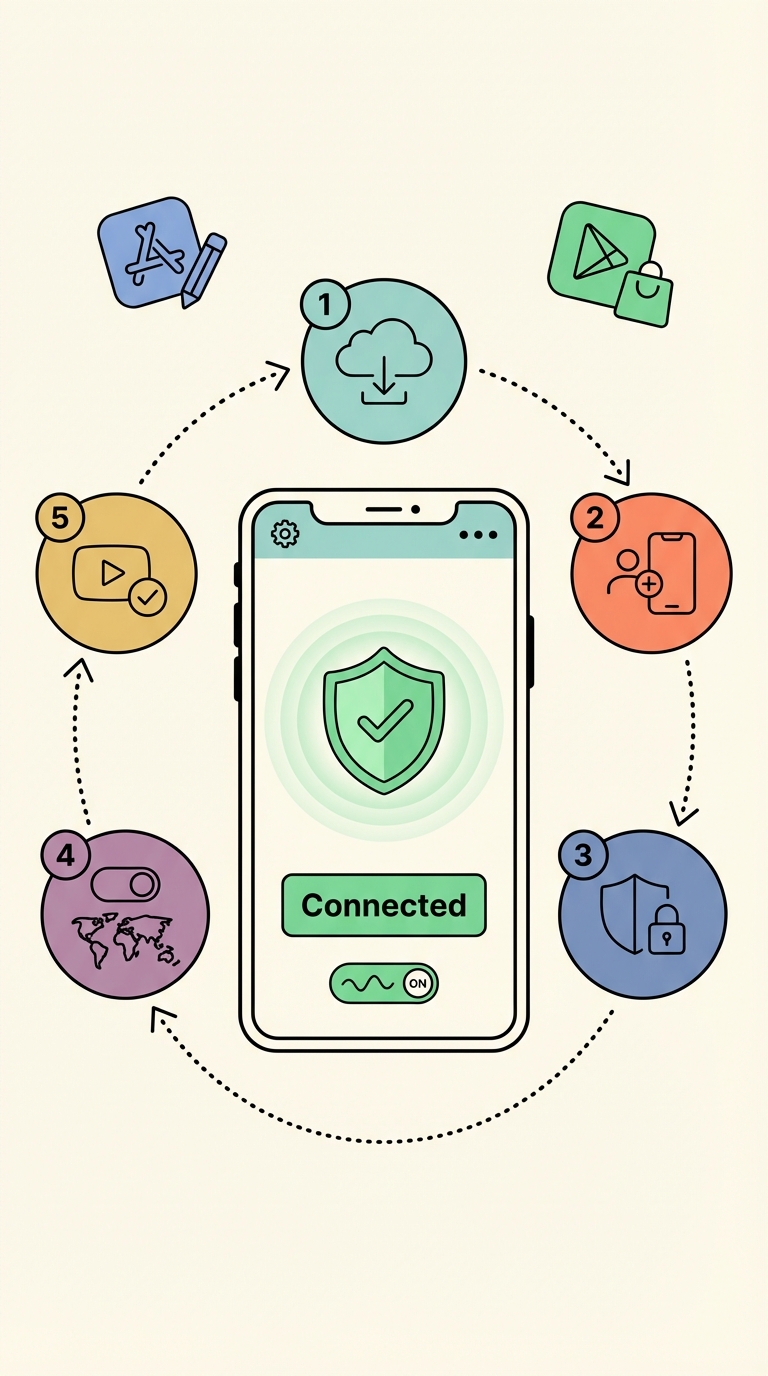
Android VPN setup — 6 steps
Open Google Play Store and search for your VPN
Open Google Play. Search for your chosen VPN (e.g. "NordVPN", "ExpressVPN", "Surfshark"). Install the official app — verify the developer name matches the company.
For China specifically: also download the APK from the provider's website as a backup before you leave.
Sign in to the VPN app
Open the app and sign in with your account. Complete payment and account setup on the provider's website at home, not at the airport — some VPN sign-up pages are blocked in restricted countries.
Grant VPN permissions
Android shows a popup: "VPN connection request" with the provider name → tap OK. You may also be asked to allow notifications — enable this so you can see connection status in your notification bar.
Enable obfuscation for restricted countries
In Settings, look for "Obfuscated servers", "NoBorders mode" (Surfshark), or "Camouflage mode". Enable this before entering China, UAE, Iran, or Russia. For China-specific tips see our <a href="/vpn/vpn-for-china" style="color:var(--brand-text, var(--brand-primary));font-weight:600;">VPN for China guide</a>.
Select a server and connect
Tap Connect. Most apps have "Quick connect" which picks the fastest server automatically. For travel, manually select a server in your home country or a nearby open country (UK, Singapore, US).
Test: open Chrome, try Google and WhatsApp calls
While connected, open Chrome → google.com. Open WhatsApp → try a voice call. Both should work. If not, try switching to a different server location.
For China specifically: download the VPN APK file from the provider's website and save it to your phone's storage before you leave. If the app stops working inside China, you can reinstall from the saved APK without needing the Play Store. Also consider an eSIM + VPN setup for reliable, uncensored data on arrival.
VPN not working on Android? Fix it