How to Set Up a VPN
on iPhone
A 5-minute setup that takes you from zero to fully protected on iOS — step by step. Not sure which VPN to install? See our best VPN providers for travel first.
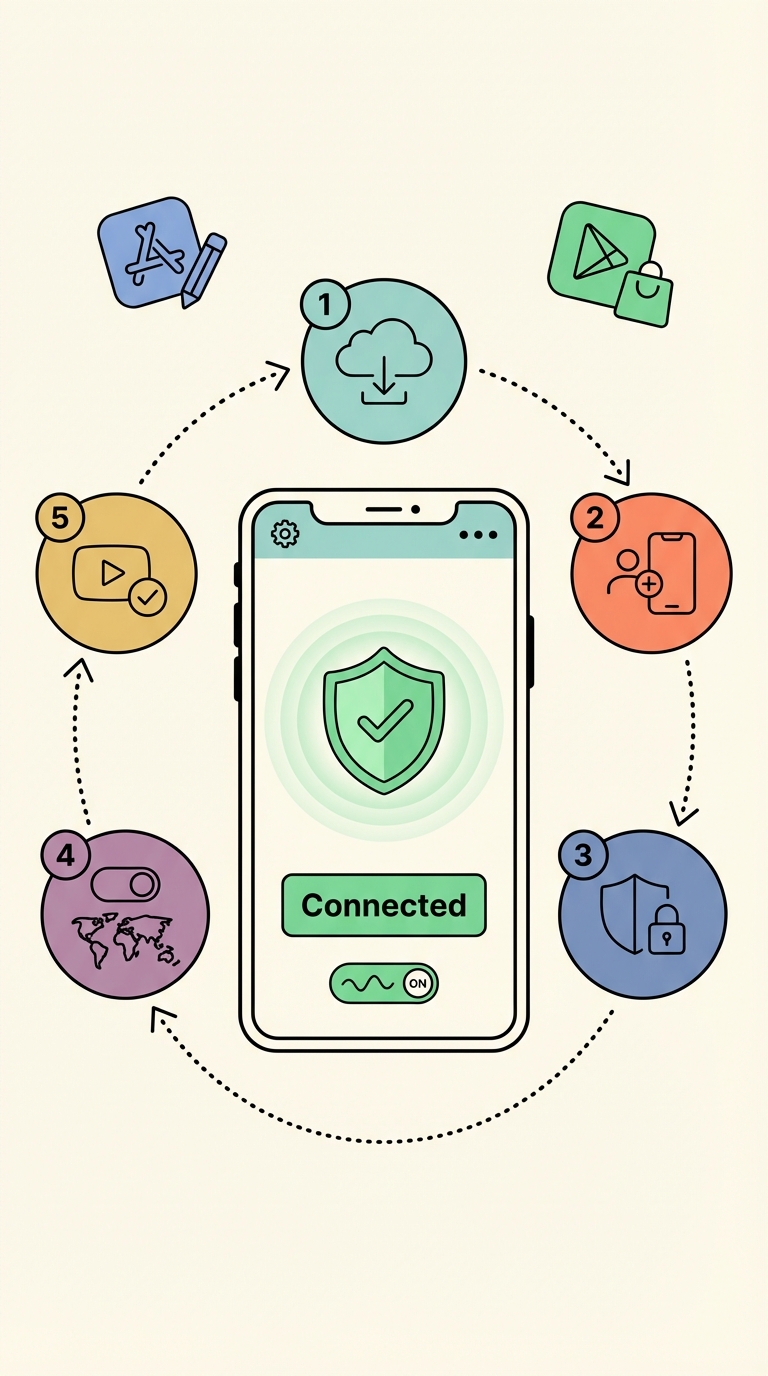
iPhone VPN setup — 6 steps
Go to the App Store and find your VPN
Open the App Store. Search for your chosen VPN (e.g. "ExpressVPN", "NordVPN", "Surfshark"). Download and install the official app — check the developer name matches the company.
Open the app and sign in
Launch the VPN app. Sign in with the account you created when you purchased. If you haven't signed up yet, complete payment on the provider's website first for best pricing.
Allow the VPN configuration
The app will prompt: "VPN would like to add VPN configurations" → tap Allow. iOS will ask for your Face ID or passcode. This is normal and safe — the app is registering with iOS's built-in VPN system.
Enable obfuscation (for China, UAE, Iran, Russia)
Go to the app's Settings → look for "Obfuscated servers", "Stealth mode", "Lightway protocol", or "NoBorders mode" and enable it. This hides the fact you're using a VPN from the country's firewall. See our <a href="/vpn/vpn-for-china" style="color:var(--brand-text, var(--brand-primary));font-weight:600;">VPN for China guide</a> for specific setup steps.
Only needed for China, UAE, Iran, Russia, and other restricted countries. Skip if travelling to most of Europe, USA, or Australia.
Choose a server and connect
Tap the Connect button (usually a large power/shield icon). Select a server in your home country or a nearby open country (UK, Singapore, US). You'll see "Connected" within seconds.
Test — open Google and WhatsApp
With the VPN connected, open Safari → google.com. Open WhatsApp → try a voice call. If both work, you're fully set up and ready to travel.
Add the VPN toggle to Control Centre: Settings → Control Centre → Add "VPN". Connect/disconnect with a single swipe — no need to open the app. Always turn on your VPN before connecting to hotel or airport Wi-Fi.
VPN not working on iPhone? Fix it