TLDR
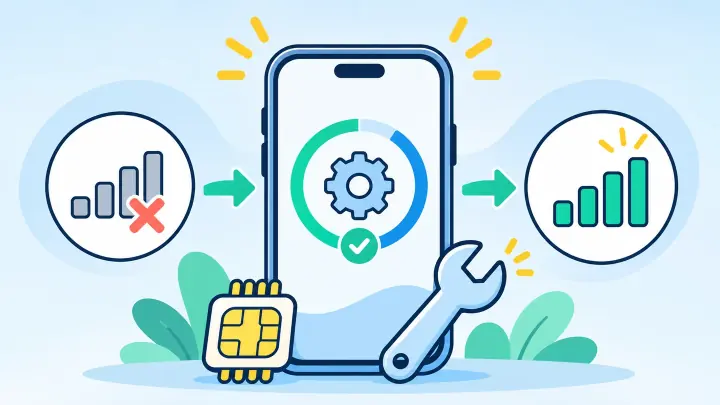
- Restart the iPhone once more after the update finishes.
- Check that the eSIM line is on and still chosen for cellular data.
- Open About and wait for a carrier settings update.
- Test Airplane Mode before resetting network settings.
- Do not delete the eSIM unless a replacement download is ready.
Work out what stopped after the iPhone update
Start by naming the broken part. Does the eSIM line appear under Settings and Cellular? Does it show signal but no internet? Can it make calls but not use data? Each answer points to a different fix.
If the line has vanished from the Cellular screen, the phone is not reading the profile. If the line is listed but off, the update may have changed a switch. If it shows SOS or No Service, the phone is failing to register on the network. Signal bars with no internet usually point to the data line, roaming, or APN.
Write down the iOS version under Settings, General, and About. Also note whether the issue started immediately after the update or only after you arrived in another country. That detail will help the carrier tell an iPhone issue from a coverage problem.
Leave the eSIM profile on the iPhone
Deleting the eSIM should not be the first fix. Many QR codes are made for one download. Once the profile is removed, the old code may not bring it back. Keep the line in place while you try settings that can be reversed.
Open Settings, Cellular or Mobile Service. If the line appears, tap it and take a screenshot of its label and status. Do not include private account numbers if you plan to send the image. If you see more than one travel line, compare their labels and turn on only the plan you intend to use.
If the line does not appear, restart the iPhone. Check Settings again after a full minute. Then use uPhone’s device compatibility checker to confirm the exact model and region. The update does not add eSIM hardware, but it can make an older model or carrier limit easier to notice.
Ask the eSIM provider whether the profile can be downloaded again. Get a replacement code first when one is needed.
Put the eSIM line and data choices back in place
An update can leave the line turned off or switch cellular data to another SIM. These changes take only a minute to correct.
- Turn on the eSIM lineOpen Settings, Cellular, tap the eSIM, and enable Turn On This Line.
- Select it for dataGo back to Cellular Data and choose the eSIM you want to use.
- Control data switchingTurn off Allow Cellular Data Switching if the home line must never use roaming data.
- Check data roamingTurn it on for a travel eSIM only when the provider tells you to.
- Refresh the connectionUse Airplane Mode for ten seconds, turn it off, and wait up to two minutes.
Turn off Wi-Fi and open a new Safari page. An old page may be stored on the phone and is not a good test. If you use two lines, uPhone’s Dual SIM setup guide explains how to keep calls on one line and data on the other.
Check network selection
Inside the eSIM settings, open Network Selection. Begin with Automatic. For a travel plan, use manual selection only when the provider names a partner network. A phone can see many networks but may be allowed to join only one or two of them.
Install any carrier settings update
Carrier settings are separate from iOS. They tell the iPhone how to use a carrier’s voice, data, messaging, and network features. A new iOS version may need a matching carrier bundle.
Connect to Wi-Fi and open Settings, General, and About. Stay on the page for about 30 seconds. If a Carrier Settings Update appears, tap Update. Then restart the iPhone and test the eSIM with Wi-Fi off.
Look at the carrier name and version on the About page. If the line shows the wrong carrier or no carrier, take note of it before contacting support. Do not install a configuration profile sent through an unknown message. A real carrier update appears in iPhone settings.
Check for a small follow-up iOS release
Open Settings, General, and Software Update again. Apple sometimes follows a major update with a smaller fix. Install only a normal public update after backing up the phone. If no update is offered, continue with the checks below instead of joining a beta program.
Reset network settings only after the simple fixes
A network reset can clear broken connection records left by an update. It also removes saved Wi-Fi networks and passwords, VPN settings, and other network choices. Make sure you know the Wi-Fi password before you begin.
Go to Settings, General, Transfer or Reset iPhone, Reset, and Reset Network Settings. Read the button carefully. Do not choose Erase All Content and Settings. The iPhone will restart.
After it comes back, join Wi-Fi, open Cellular, and check the eSIM line. Select it for data again. Follow the provider’s roaming rule and test without Wi-Fi. The eSIM profile normally stays installed during a network reset, but its data choices may need to be set again.
If data still fails, compare the symptoms with uPhone’s eSIM troubleshooting guide. It covers APN, coverage, and local network checks that are not caused by iOS itself.
Check the plan and network outside the iPhone
The timing of an update can be a coincidence. Sign in to the provider account and confirm that the plan still has data and has not reached its end date. Check whether the country is covered and whether service is down for other customers.
A travel eSIM can remain installed after its package runs out. The line may look normal but have no usable data. uPhone’s eSIM data plans guide explains validity and top-up rules that can cause this confusion.
Contact the provider when the line is missing, the iPhone says the profile is invalid, or all safe checks fail. Give support the order number, iPhone model, iOS version, country, and the time the update finished. Ask whether the existing profile is still active before agreeing to delete it.
Keep your eSIM working through future iPhone updates
Before a large update, save the provider’s support details and your order number somewhere other than the phone. Take note of which line handles data and whether roaming is on. Back up the iPhone, connect it to power, and update on reliable Wi-Fi.
After the update, open Cellular before leaving home. Make sure the eSIM is on, selected for data, and able to load a page with Wi-Fi disabled. This short check gives you time to fix a setting while you still have another way to connect.
If you are learning the setup before a trip, a free eSIM trial can help you find the correct iPhone menus without risking your main travel plan.