eSIM Dual SIM Setup
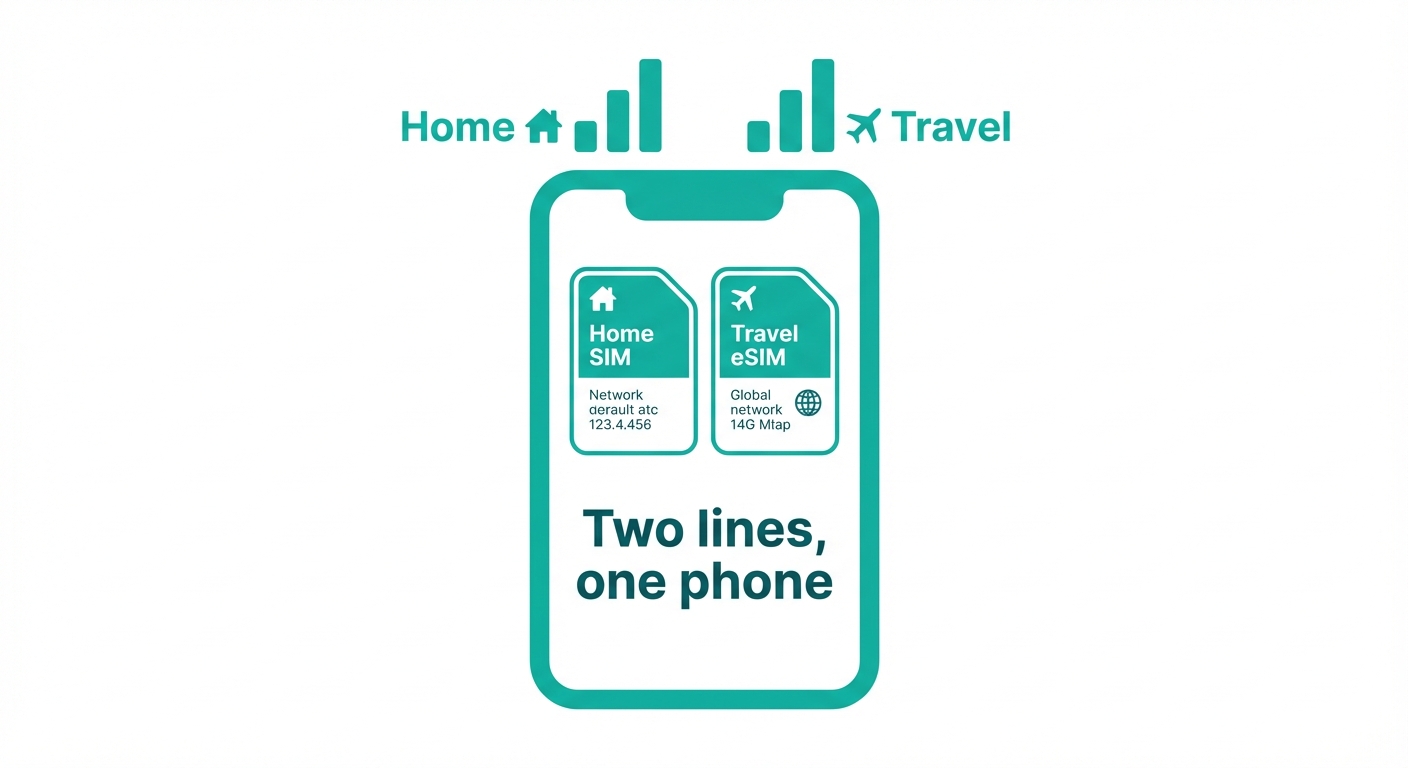
Run your home number and a travel data plan simultaneously on one phone — no more choosing between staying reachable and avoiding roaming charges.
What dual SIM means
1
Keep your home number, add a travel data plan
Dual SIM means your phone has two active connections at the same time. With an eSIM and a physical SIM running together, you get the best of both worlds. New to eSIM? Read the complete eSIM guide first, or compare eSIM vs physical SIM to understand the differences.
Line 1
Physical SIM — home number
Stays active. Family, work, and banks can still reach you on your usual number. Your home carrier handles calls and SMS.
Line 2
eSIM — local data plan
Cheap local data rates wherever you travel. Use WhatsApp, maps, and streaming without roaming charges.
Result: You're always reachable on your home number, and you're using affordable local data. Zero roaming charges.
Setup steps
2
How to set up Dual SIM
iPhone setup
1
Scan the uPhone QR code: Settings > Cellular > Add eSIM
2
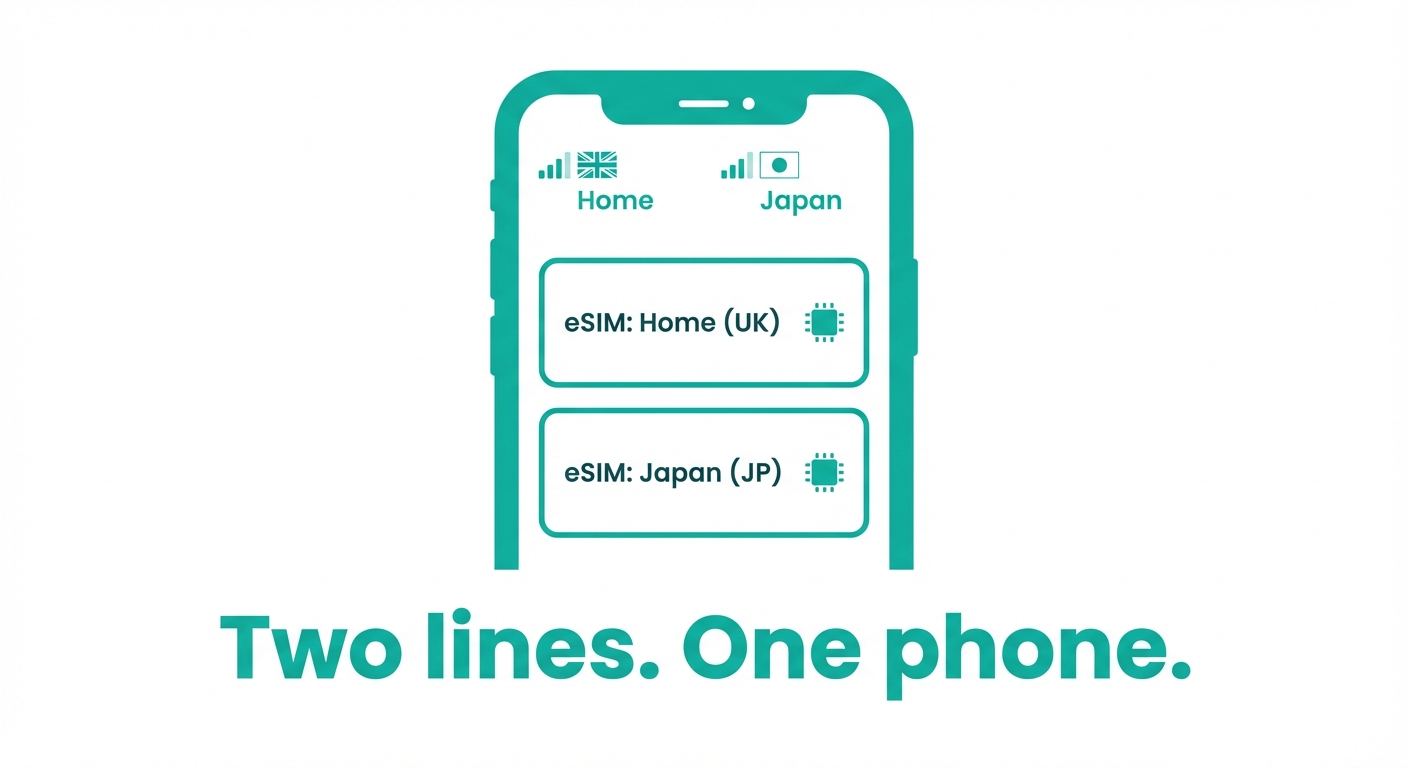
Label your lines — e.g. "Home" for physical, "Travel" for eSIM
3
Go to Settings > Cellular > Default Line for calls
4
Set eSIM as your default cellular data line
5
Enable "Allow Cellular Data Switching" to auto-switch if needed
Android setup
1
Install eSIM: Settings > Connections > SIM card manager > Add eSIM
2
Scan the uPhone QR code when prompted
3
Label your SIMs under SIM card manager
4
Set eSIM as preferred data SIM: Settings > Connections > Data usage
5
Keep physical SIM as preferred calling SIM
Line management
3
Switching and managing between lines
| Setting | iPhone | Android | Recommended |
|---|---|---|---|
| Default calls | Settings > Cellular > Default Line | Settings > Connections > SIM manager | Physical SIM |
| Default data | Settings > Cellular > Cellular Data | Settings > Connections > Data usage | eSIM |
| iMessage/SMS label | Settings > Messages > Send & Receive | Settings > Messages | Physical SIM |
| Roaming | Disable on physical SIM | Disable on physical SIM | eSIM only |
Watch out
4
Common Dual SIM mistakes to avoid
Forgetting to set eSIM as data default
If you leave your physical SIM as data default, you'll pay home carrier roaming rates. Always set eSIM as primary data. Not sure which eSIM plan to get? See our <a href="/esim/esim-data-plans" style="color:var(--brand-text, var(--brand-primary));font-weight:600;">eSIM data plans guide</a>.
Not labelling your lines
Unlabelled lines lead to accidentally calling on the wrong SIM. Label them clearly — "Home" and "Travel" works well.
Using physical SIM for data abroad
Even with a travel eSIM installed, if your physical SIM is set as default data it will roam and rack up charges.
Accidentally calling on the roaming SIM
A missed tap when dialling can route a call via your home carrier. Double-check the line indicator before confirming a call.