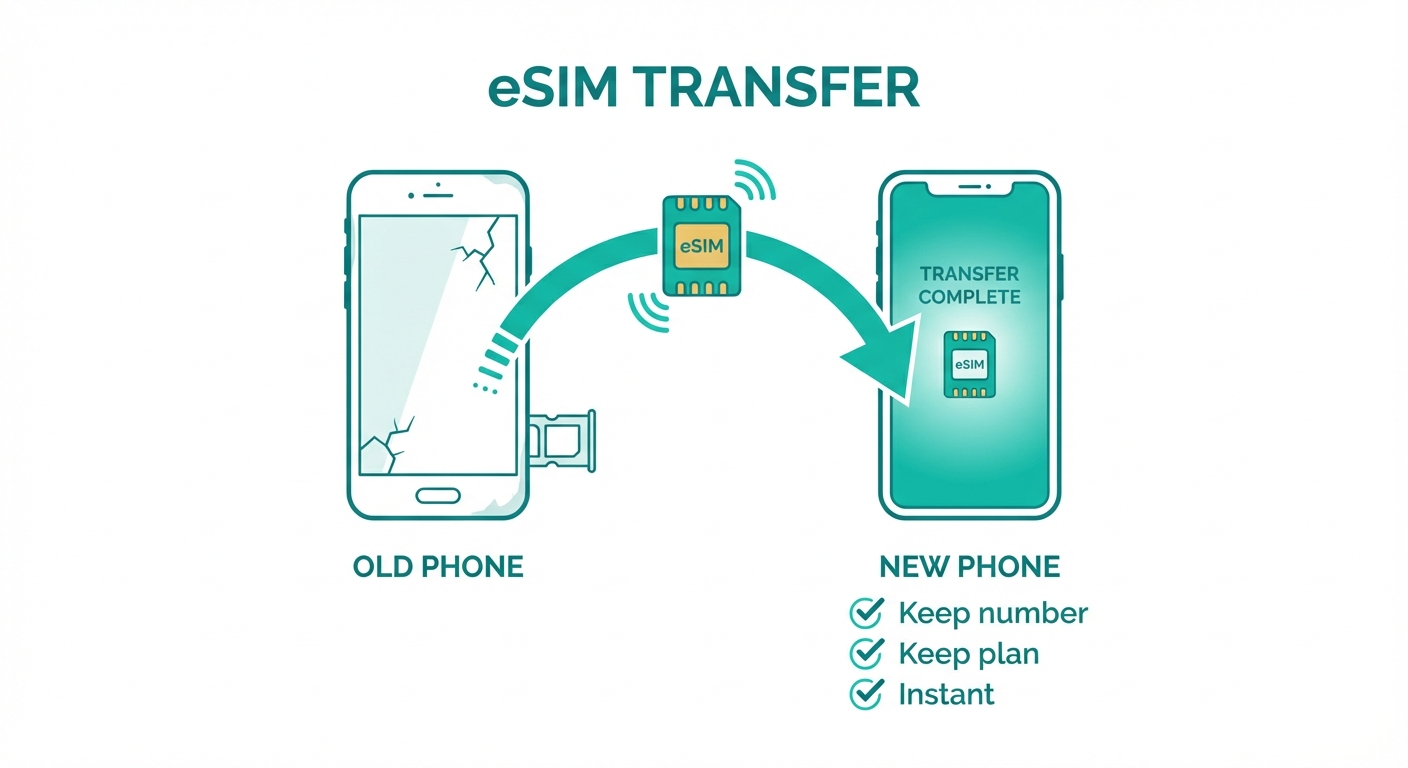
How to Transfer Your eSIM to a New Phone
Step-by-step guide for iPhone to iPhone, Android to Android, and cross-platform eSIM transfers when upgrading your device.
Check these 3 things first
Most eSIM plans can only be transferred once. Contact your provider before doing anything — they'll confirm whether a transfer is possible and what the process is.
iPhone to iPhone transfer
iOS 16 and later support Quick eSIM Transfer — Apple's built-in method that moves your eSIM without needing a new QR code.
Do not delete from your old phone until you have confirmed the eSIM is working on the new device.
Android to Android transfer
Android eSIM transfer varies by manufacturer. The general approach works for most devices. Some Samsung models support direct transfer via the Samsung Switch app. If you run into issues during setup, check the eSIM troubleshooting guide.
Samsung tip: Galaxy devices running One UI 5+ may support direct eSIM transfer via Samsung Switch. Check Settings > Accounts and backup > Samsung Switch on your old device.
iPhone to Android (or Android to iPhone)
There is no automatic cross-platform eSIM transfer. You will need to go through the manual process — which means contacting your provider for a new QR code.
Note: No automatic cross-platform transfer is possible. Always use the manual QR code method when switching between iOS and Android.
What if I factory reset my phone?
On most devices, eSIM profiles are stored in a dedicated secure chip and are not wiped during a factory reset. After restoring your device, go to Settings > Cellular — your eSIM plan should still appear. Once your new device is set up, consider using Dual SIM to run your home number and a travel eSIM simultaneously.
If the eSIM is not there after a reset, contact your provider. They can re-issue a QR code linked to your original order.