TLDR
- Leave the active old phone on and nearby.
- Connect the new unlocked phone to Wi-Fi.
- Sign in to My Verizon on the new phone.
- Select the line and choose the device or SIM activation option.
- Approve the security code and eSIM download.
- Restart, then test calls, texts, and mobile data.
Prepare both phones before moving the number
Charge both devices and keep them connected to Wi-Fi. Update their software. The new phone must support eSIM, be compatible with Verizon, and be unlocked if it came from another carrier. Check its IMEI through Verizon before starting.
Know the My Verizon password and account PIN. Only an Account Owner or Account Manager can move an existing line through the app. If the account has one line, Verizon may use the old phone to approve the transfer. Do not wipe it yet.
Back up photos and app data. An eSIM transfer moves cellular service, not the full contents of the old phone. uPhone’s compatibility page can help with the general eSIM checks before Verizon performs its own device check.
Move the line in the My Verizon app
On the new phone, install the latest My Verizon app and sign in. The app may detect that the device needs activation and guide you automatically.
If it opens at the normal dashboard, go to Mobile and select the number you want to move. Scroll to an option such as Change or replace device on this line or Activate or get SIM. Choose the new device and follow the prompts.
Verizon may send a one-time authorization code to another number on the account. Enter it, review which line and phone are shown, then confirm activation. Accept the eSIM download on the new phone. Stay on Wi-Fi until the process says it is finished.
Do not repeat the request while it is processing
First registration can take several minutes. Sending another activation immediately can cause confusion. Wait for the app and phone to finish before restarting once.
A supported iPhone can also offer direct transfer
Verizon’s current bring-your-own-device instructions support transfers from an iPhone 11 or newer to an unlocked iPhone 12 or newer when both use iOS 15.6 or later. The phones should share an iCloud account with two-factor authentication, use passcodes, be charged, connected to Wi-Fi, and placed close together.
On the new iPhone, open Settings, Cellular, and Add eSIM or Set Up Cellular. Follow the offered transfer prompts. The choices displayed can vary with the models and account. Restart the new iPhone after it reports activation.
For Android-to-iPhone or iPhone-to-Android moves, supported newer software may offer device-to-device transfer. If the option does not appear, use My Verizon or contact Verizon rather than trying an old QR code.
The old eSIM stops serving the number
A phone number cannot stay active on both eSIM profiles as a duplicate line. Once the new eSIM activates, Verizon deactivates service on the old phone. Its apps and Wi-Fi still work, but calls, SMS, and cellular data for that number move away.
Keep the old eSIM profile until the new device passes all tests. Turning off an inactive profile is harmless. Delete it only after you are sure the move succeeded and no account instruction says otherwise.
Do not confuse moving a line with porting a number. This process keeps the number on the same Verizon account and changes only the device that carries it.
Check all three parts of service
- Turn Wi-Fi off and load a webpage over Verizon data.
- Call another phone and ask it to call back.
- Send and receive a standard SMS, not only iMessage or RCS.
- Check voicemail and personal hotspot if you use them.
- Open My Verizon and confirm the correct device appears.
Messages from Apple or Google may need a few minutes to settle after the number moves. Make sure the line is enabled and selected as the default for voice and mobile data. uPhone’s Dual SIM guide is useful when the new phone already contains another line.
Use the account path when automatic transfer fails
If the new phone says SOS or No Service, restart it and wait. Check Wi-Fi, software updates, airplane mode, and whether the eSIM appears under SIM settings. Verizon says a new bring-your-own-device activation can take up to 15 minutes.
Return to My Verizon, open the affected line, and choose Activate or get SIM to request a new eSIM profile if the earlier one was deleted. Do not keep scanning a used QR code.
Use uPhone’s general eSIM transfer guide and troubleshooting checklist for phone-side checks. Contact Verizon when the account shows the wrong IMEI, authentication is unavailable, or service remains on neither phone.
Transfer a Verizon eSIM with both phones ready
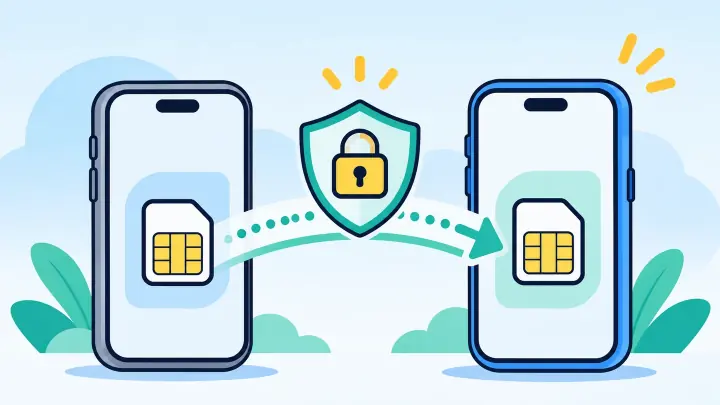
The safest path is to keep the old device working, connect the new one to Wi-Fi, and move the line through My Verizon. Compatible iPhones may also show a direct transfer option in Cellular settings.
Wait for activation, restart once, and test data, calls, and SMS before wiping or trading in the old phone. If the transfer option is absent, let Verizon issue the new profile instead of treating the original eSIM as a file that can be copied.