TLDR
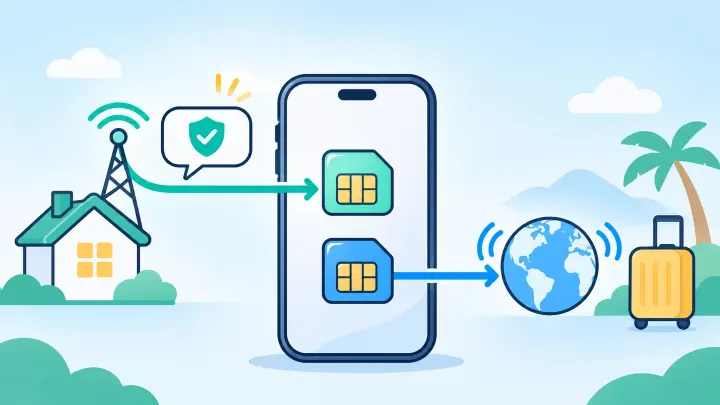
- Keep the SIM tied to the bank or account switched on.
- Choose the travel eSIM only for cellular data.
- Turn home data roaming off to prevent home-data charges.
- The home line still needs a supported roaming signal for normal SMS.
- Receiving a text is often free, but carrier rules and country fees vary.
The code follows the registered phone number
A bank or app sends its code to the number saved on the account. Installing a travel eSIM does not move that number. If the account uses your home number, the home SIM or eSIM must remain enabled.
Most travel eSIMs sell data only. They do not include a phone number that can receive regular SMS. Even when a travel plan includes a number, the bank will not use it unless the account number is changed.
| Job | Recommended line |
|---|---|
| Bank and login SMS | Home SIM |
| Maps and web browsing | Travel eSIM |
| Calls from home contacts | Home SIM, if roaming costs are acceptable |
| App messages | Travel data can carry them |
Receiving and sending are charged differently
Many carriers do not charge for incoming SMS while roaming, but this is not universal. Sending a text, answering a call, listening to voicemail, or using home mobile data can cost money. Ask the home carrier about the destination before departure.
Turning off data roaming on Home blocks its mobile data. It does not turn off the line or stop normal SMS. Keep Travel selected as the mobile data line and follow uPhone’s Dual SIM setup guide.
A line that is switched off cannot register with a network or receive a normal SMS code.
Prepare the home number before departure
- Confirm that international roaming is allowed on the account.
- Check that the destination has a partner network.
- Install the travel eSIM over reliable Wi-Fi.
- Label the lines Home and Travel.
- Select Travel for mobile data.
- Disable data roaming for Home.
Use uPhone’s installation guide and verify the travel plan with Wi-Fi off. Keep the home line on during this test, then confirm that an ordinary text can reach it.
Save recovery methods too
Download backup codes from important accounts. Add an authenticator app or hardware security key where supported. These methods help when a bank blocks roaming SMS or the local network is unavailable.
Request one code and wait before trying again
After arrival, let the home line register with a local partner. Its carrier name should appear even though Travel is selected for data. Request the code once and allow several minutes.
Repeated requests can invalidate earlier codes or trigger an account security delay. Make sure the phone’s date and time are automatic. Check blocked senders and spam folders in the messaging app.
If the home line shows no service, try automatic network selection first. Then choose another approved roaming partner if the home carrier lists one. uPhone’s coverage guide helps with the travel data line, while the home carrier controls SMS roaming.
Find out whether the problem is network or sender related
Ask someone to send a normal text to the home number. If that arrives but the bank code does not, the sender may block international delivery, short codes, or roaming numbers. Contact the bank through its official app or number.
If no texts arrive, restart the phone, toggle Airplane Mode briefly, and check that Home remains enabled. Do not delete either eSIM. Follow uPhone’s troubleshooting guide for line and network checks.
Wi-Fi calling may help calls and carrier services, but SMS over Wi-Fi depends on the home carrier. Do not count on it without testing before the trip.
Reduce your dependence on travel SMS
SMS codes can fail because of weak roaming, anti-fraud rules, or a lost phone. An authenticator app works offline after setup and is usually more reliable abroad. Secure backup codes should be stored somewhere separate from the phone.
Keep the device locked, hide message previews on the lock screen, and never share a verification code with someone who calls or messages you. A real support agent should not ask you to read out a one-time banking code.
You can keep SMS codes while travel data uses an eSIM
Leave the home number enabled, allow it to register for roaming, and select the travel eSIM for mobile data. Turning off home data roaming protects against data charges without blocking ordinary incoming texts.
Check the home carrier’s fees and partner coverage before leaving. Add backup login methods so a missing SMS does not lock you out of important accounts abroad.