How to Set Up a VPN
on Samsung Galaxy
A complete guide for Samsung Galaxy phones running One UI — from installation to connection, with Samsung-specific tips. Don't have a VPN yet? See the best VPN providers for travellers before you start.
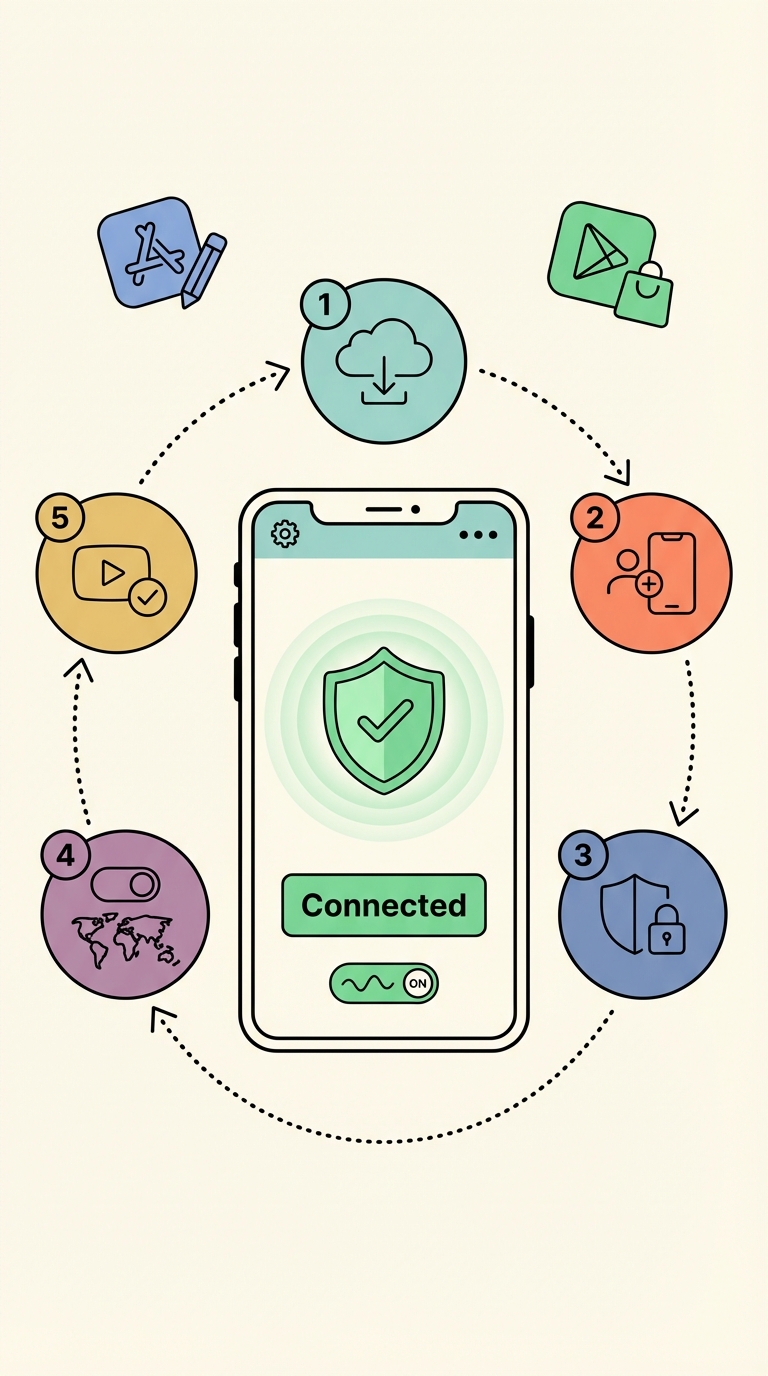
Samsung VPN setup — 6 steps
Open Galaxy Store or Google Play and install your VPN
Open either the Galaxy Store or Google Play. Search for your VPN app (e.g. "NordVPN", "ExpressVPN", "Surfshark"). Install the official app. The Google Play version is generally more up-to-date and recommended.
For China: also download the APK from the provider's website before you travel as a backup.
Create an account and sign in
Sign up on the provider's website and complete payment before installing. Open the app and sign in with your credentials. Do this at home — VPN sign-up sites may be blocked in some countries.
Allow the VPN connection request
Samsung's One UI will show a popup: "Your VPN provider wants to set up a VPN connection" → tap OK. Your VPN status icon will appear in the notification bar when connected.
Check Samsung Knox settings (One UI 5+)
On newer Samsung phones, go to Settings → Biometrics and security → Install unknown apps if using an APK. For Knox Secure Folder users: install the VPN app in your main profile, not just the Secure Folder, so it protects all traffic.
Enable obfuscation for restricted countries
Before visiting China, UAE, Iran, or Russia, go to the VPN app's Settings and enable obfuscation: "Obfuscated Servers" (NordVPN), "NoBorders Mode" (Surfshark), "Lightway" (ExpressVPN), or "StealthVPN" (Astrill). For China-specific instructions, read the <a href="/vpn/vpn-for-china" style="color:var(--brand-primary);font-weight:600;">VPN for China guide</a>.
Connect and test
Tap Connect. Test by opening Samsung Internet → google.com, and WhatsApp → voice call. Both should work without issues. Samsung Internet and Chrome both benefit from VPN protection equally.
Add your VPN to the Quick Panel: swipe down twice → tap the pencil icon → find and add your VPN tile. You can then toggle it on/off with a single tap from the notification shade.
When using DeX mode (connected to a monitor), the VPN installed on your Samsung phone automatically protects all DeX sessions too — no separate desktop VPN client needed. For business travel security tips, see the VPN for business travel guide.
VPN issues on Samsung? Fix it